Body Cam on ER:LC
On ER:LC the officer's MDT is the body cam. When you log in to the MDT you share your Roblox window, and the MDT records it into PulseEvidence whenever something starts it: on scene, a traffic stop, panic, being put on a call, or a kill in the ER:LC kill log. Dispatch can watch it live. Recordings, evidence holds, categories, retention and the audit work exactly as they do on FiveM.
Who has it
| Pulse One ER:LC (free) | Pulse Max ER:LC | |
|---|---|---|
| Body cam recording | \(2.99 a month (\)29.90 a year) add-on | Included |
| Best recording quality | 720p | 1080p |
| Recordings kept for | 7 days | 30 days |
| Storage | 30 GB | 100 GB |
- The owner buys the add-on in Admin → Billing; see Plans & Billing.
- More storage is the body cam storage add-on: 50 GB per unit for \(3.99 a month (\)39.90 a year), up to 10 units.
- Without Pulse Max ER:LC or the add-on there is no body cam: the MDT shows no camera, and Dispatch has no Unit Cams.
What officers need
- The CAD open in Chrome or Edge on the PC you play Roblox on. The browser shares the Roblox window, so it does not work on a phone, a tablet or a console.
- Keep the CAD tab open while you are on duty. Closing it ends the recording; what was already sent is kept.
- A linked Roblox account (Link Roblox on the login screen) for the kill-log trigger.
The Roblox window has no sound. Game audio, voice chat and Discord are never recorded. If the admin allows it, you can add your own microphone.
Turning your body cam on
- Open Law Enforcement from your community home.
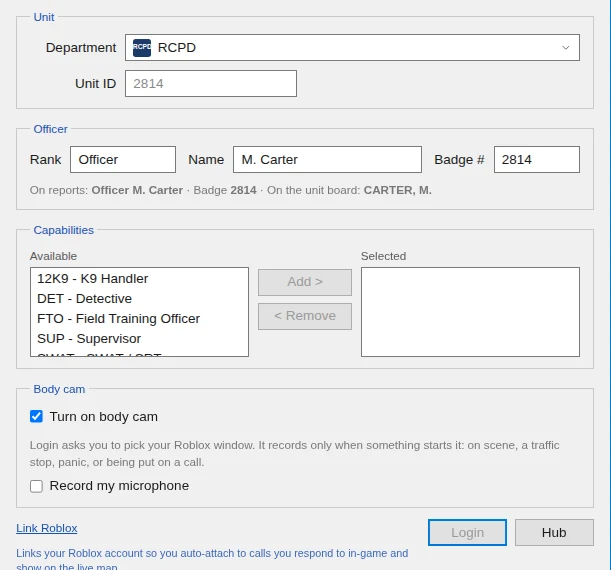
- On the login screen, the Body cam section has Turn on body cam ticked. Tick Record my microphone too if you want your voice on your recordings (it starts off). Both choices are remembered on this computer.
- Select Login. Your browser asks which window to share: pick the Roblox window, then Share.
If you cancel the share, you go on duty with the camera off. Untick Turn on body cam to work a shift without one.
The CAM box
Once you are on duty, a CAM box sits beside the dispatch badge at the top of the MDT, in every look:
| It shows | Meaning |
|---|---|
CAM STANDBY |
The camera is ready and records when something starts it |
CAM REC 01:24 |
Recording, with how long it has run. LIVE is added while someone in Dispatch is watching |
CAM NO WINDOW |
The share was stopped (the browser's own Stop sharing, or the window closed). Click it and choose Share window... |
CAM OFF |
You turned the camera off |
Click the box for its menu: Start recording or Stop recording, Microphone on or off, Change window..., Turn off body cam, and My videos (PulseEvidence).
- A recording that is already running keeps the microphone setting it started with; a change applies from the next recording.
- If you stop a recording by hand while a trigger is still active, it stays stopped until that trigger has cleared.

What starts a recording
Each trigger can be switched off in Admin → Body cam. Recording continues for Continue recording for (seconds) after the last one ends (30 seconds by default).
- On scene: while your status is On Scene.
- Traffic stop: when you call in a stop with Traffic Stop (F10).
- Panic: when you press panic.
- Put on a call: while you are on a call, from being assigned (or assigning yourself) until you clear.
- Kill involving the officer: when the ER:LC kill log shows you killed someone or were killed. The log reaches the CAD a few seconds late, which the time after the trigger covers.
Lights, siren and gunfire cannot start a recording on ER:LC: the game does not report them.
Classifying a recording
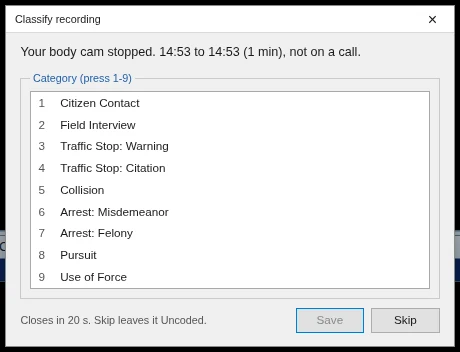
When a recording that was not on a call stops, the MDT asks once for a category. Press a number key 1 to 9 (or select one and Save). Skip or Esc leaves it Unclassified, and the prompt closes by itself after 20 seconds. Recordings made on a call are classified when you clear the call with Clear w/Dispo (F12), or later in PulseEvidence.
Watching live
- Dispatch: the Unit Cams tile shows every on-duty police unit,
RECwhile it records. A unit row has a camera button (red while recording), and right-clicking a unit gives Watch body cam (live). A call's right-click menu and Closed Calls have Body cam footage. See Dispatch. - Server Console: the Body cams card on the Live tab lists every police unit on duty as Recording, Standby or Camera off, with Watch. See Server Console & Moderation.
Watching makes the officer's MDT stream its picture until nobody is watching. It does not start a recording. The picture appears only while the officer's camera has a window shared.
Who may watch and who sees which recordings follows the body cam permissions: dispatchers and LEO supervisors by default, plus anyone holding the body cam keys.
Admin → Body cam on ER:LC
The page is the same as on FiveM (body cam settings) with these differences:
- Recording triggers lists the ER:LC triggers above.
- Audio has one switch, Officer microphone: on (the default), each officer chooses at login whether to add their microphone; off, nobody can.
- Overlay: the time source is always real time, and there is no "show overlay on the player's screen" setting.
- Saved settings reach an officer the next time they log in to the MDT.
The old screen-share body cam
Before V1.38.0, ER:LC had a live-only Start bodycam button on the community home, which recorded nothing. It has been removed; the camera is now part of the MDT.